STLTools has a Printers tab that watches Klipper printers on your LAN. It shows what the printer is doing, and it cannot change anything. That is the point: view-only, by design, enforced in code.
It talks to Moonraker, the API that Mainsail and Fluidd use. The Sovol SV07 runs Klipper, so it works the same way. STLTools runs on your PC or Pi, and that machine talks to the printer; both must be on the same network (or the same Tailscale network). Only local addresses are accepted.
What it shows
| STLTools can | STLTools cannot (no code for it) |
|---|---|
| State: idle, printing, paused, complete, error | Start, pause, resume, or cancel a print |
| Progress, layer, print time, time left, filament used | Send G-code or macros |
| Nozzle and bed temperature and target | Set temperatures, move axes, home |
| G-code files with thumbnails, print time, filament, layer height | Delete, move, or rename files |
| Print history | Restart Klipper / Moonraker / firmware, emergency stop |
| Webcam snapshots (every 5 seconds) | Change printer or Moonraker settings |
Upload G-code files (print=false always sent, so a print never starts) | — |
Every printer request goes through a fixed list of read-only Moonraker endpoints on the STLTools server. There is no pass-through. The tests run a fake printer and fail if any control endpoint is called. Start prints from Mainsail or the printer screen.
Adding your SV07
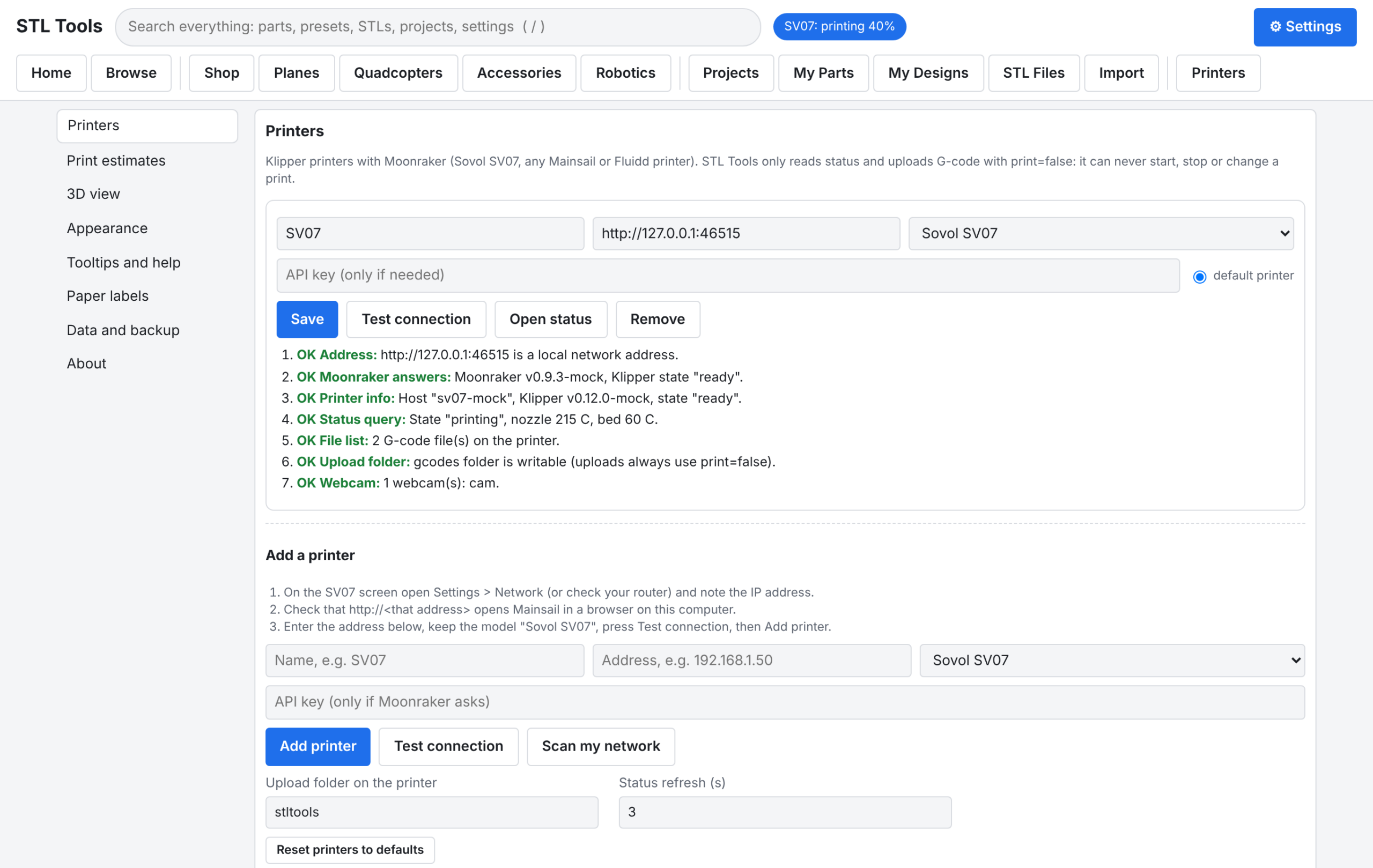
- Find the printer’s IP: touchscreen > Settings > Network (or Wi-Fi), or your router’s device list.
- Check it in a browser:
http://<printer-ip>should open Mainsail (or Fluidd). - In STLTools open Settings > Printers.
- Enter a name (for example
SV07) and the address. Keep Model = Sovol SV07. - Press Test connection. Each check shows OK or FAIL with the fix: address is a LAN address; Moonraker answers (
GET /server/info); printer info (GET /printer/info); status query (GET /printer/objects/query); file list (GET /server/files/list); upload folder (GET /server/files/roots); webcam (GET /server/webcams/list, optional). - Press Add printer. The first printer becomes the default: its status shows in the header and its profile is used for print time estimates.
Or press Scan my network: it looks for Moonraker on the server’s own local network (ports 80 and 7125, read-only /server/info requests), then press Use on a result.

Uploading G-code
- Slice the STL in your slicer (OrcaSlicer, Sovol slicer, PrusaSlicer, Cura) with your SV07 profile.
- In Printers, drop the
.gcodefile on Upload G-code. - The file goes to the
stltoolsfolder on the printer. Start the print from Mainsail or the printer screen when you are ready.
STL files are refused on purpose: the printer can only print G-code. Slicing on the server is not built. Estimates can use your printer’s own Klipper limits (bed travel, max speed, acceleration, nozzle and filament, read from toolhead and configfile, read-only) merged into the profile.
If it doesn’t connect
- “Did not answer in time”: printer off or on another network. Open
http://<printer-ip>in a browser from the same computer. - HTTP 404 on port 80: some printers serve the web UI on another port (for example
:4408). Use the same address you use for Mainsail, or try<printer-ip>:7125(Moonraker directly). - “Refused the request (needs an API key)”: add the STLTools computer’s network to
trusted_clientsinmoonraker.conf([authorization]section), or create an API key in Mainsail (Settings > Remote Printers / API) and enter it when adding the printer. The key is stored only on the STLTools server and is never sent to browsers. The API key field is write-only: a saved key is never shown again. - No webcam: the webcam must be configured in Mainsail. Snapshots use the printer’s web server.
- Thumbnails missing: turn on thumbnails in your slicer’s printer profile (G-code thumbnails, for example 300×300 PNG).
Notes from the shop: Mainsail on port 80 forwards the Moonraker API, so the plain IP works; Moonraker itself listens on 7125. Stock Klipper images usually trust the private network ranges, so no API key is needed. STLTools waits 6 seconds for an answer because the SV07 host board can be slow while it prints. Use the IP address if sv07.local style names don’t resolve.
One honest caveat: the v1.0.1 release was tested against a mock Moonraker built from the official API docs, not yet against a real SV07 on the bench. What is stored is minimal: printers.json holds name, address, model, and the optional API key. Remove a printer in the Printers tab and nothing on the printer changes.